
A grocery list that knows what's in your fridge
Plan the shop, tick items off in the store, and move everything into your fridge — with dates — when you get home.

Free on iPhone & iPad · No account needed
How it works
Build the list
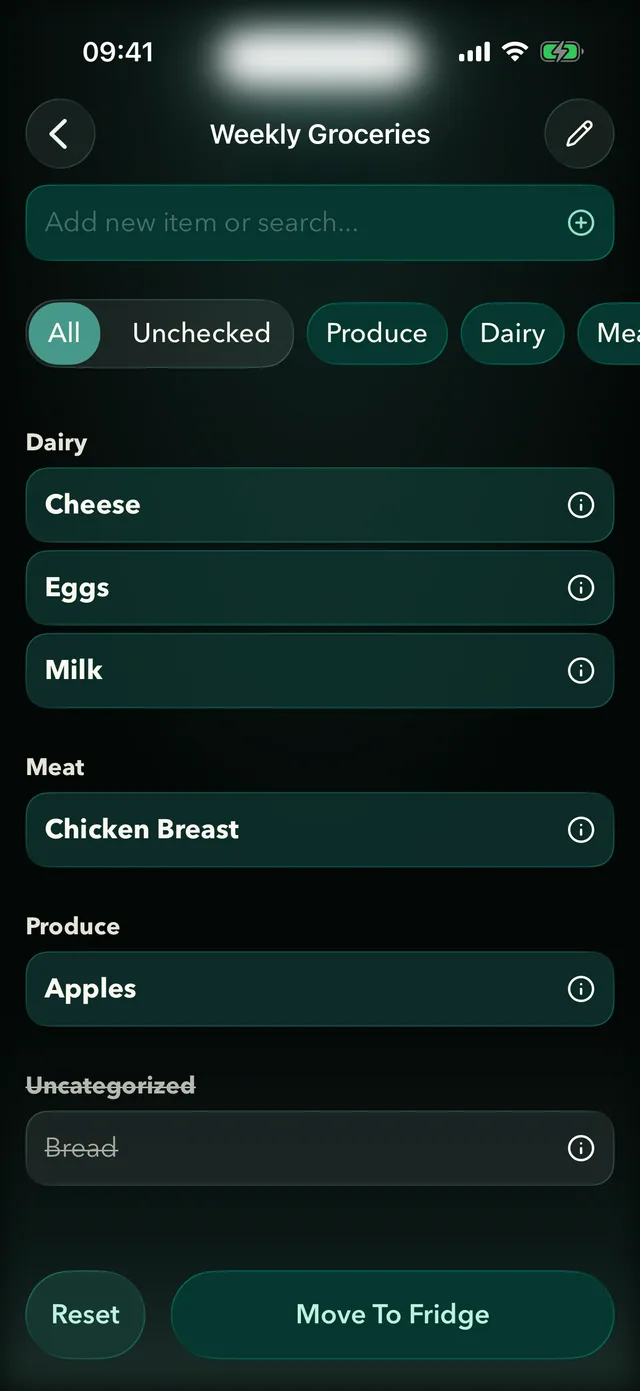
Type items, add a recipe's missing ingredients, or import a list from Apple Notes.
Shop
Items are grouped by category, so you walk the store once. Tick them off in the app or on the widget.
Restock
Move what you bought into your fridge, quantities and expiry dates included.
Why it helps
- Lists grouped by category.
- Missing recipe ingredients added from the recipe in a couple of taps.
- A Shopping List widget for your Home Screen.
- Lists shared with your household (Pro).
From list to fridge in one tap
Back home, choose "Move to fridge". Fridgea carries over what you bought, suggests expiry dates and puts everything in the right place — so your inventory stays accurate without retyping.
Recipes fill the gaps
Open any recipe and Fridgea marks each ingredient as in stock or to buy. Tap "Add to cart", pick a list, and the missing ones are added with quantities — no copying ingredients by hand.
Questions, answered
How many lists can I have?
Three on the free plan, unlimited on Pro.
Can my partner see the list?
Yes. With Pro you can share lists — and your fridge — over iCloud, and they don't need their own subscription.
Can I import a list I already have?
If it's in Apple Notes, share it to Fridgea and it becomes a list sorted by category (Pro).
Does it work from the Home Screen?
Yes. The Shopping List widget lets you tick items off without opening the app.
Try it on your iPhone
Lists grouped by category that move what you bought straight into your fridge.
Free on iPhone & iPad · No account needed