
Turn your Apple Notes shopping list into a real grocery list
Keep writing lists in Notes if you like. Share the note to Fridgea and get a list sorted by category that you can tick off — and move into your fridge afterwards.

Free on iPhone & iPad · No account needed
How it works
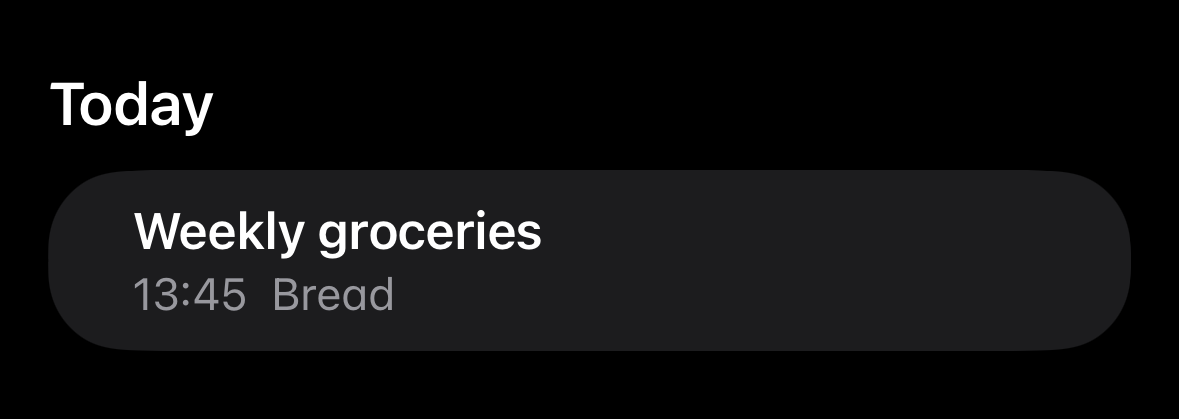
Open the note
Open your shopping list in the Notes app.
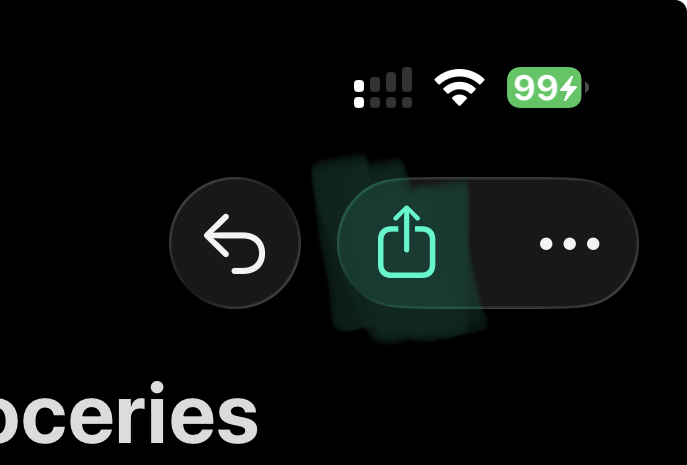
Tap Share
Use the share button at the top of the note.
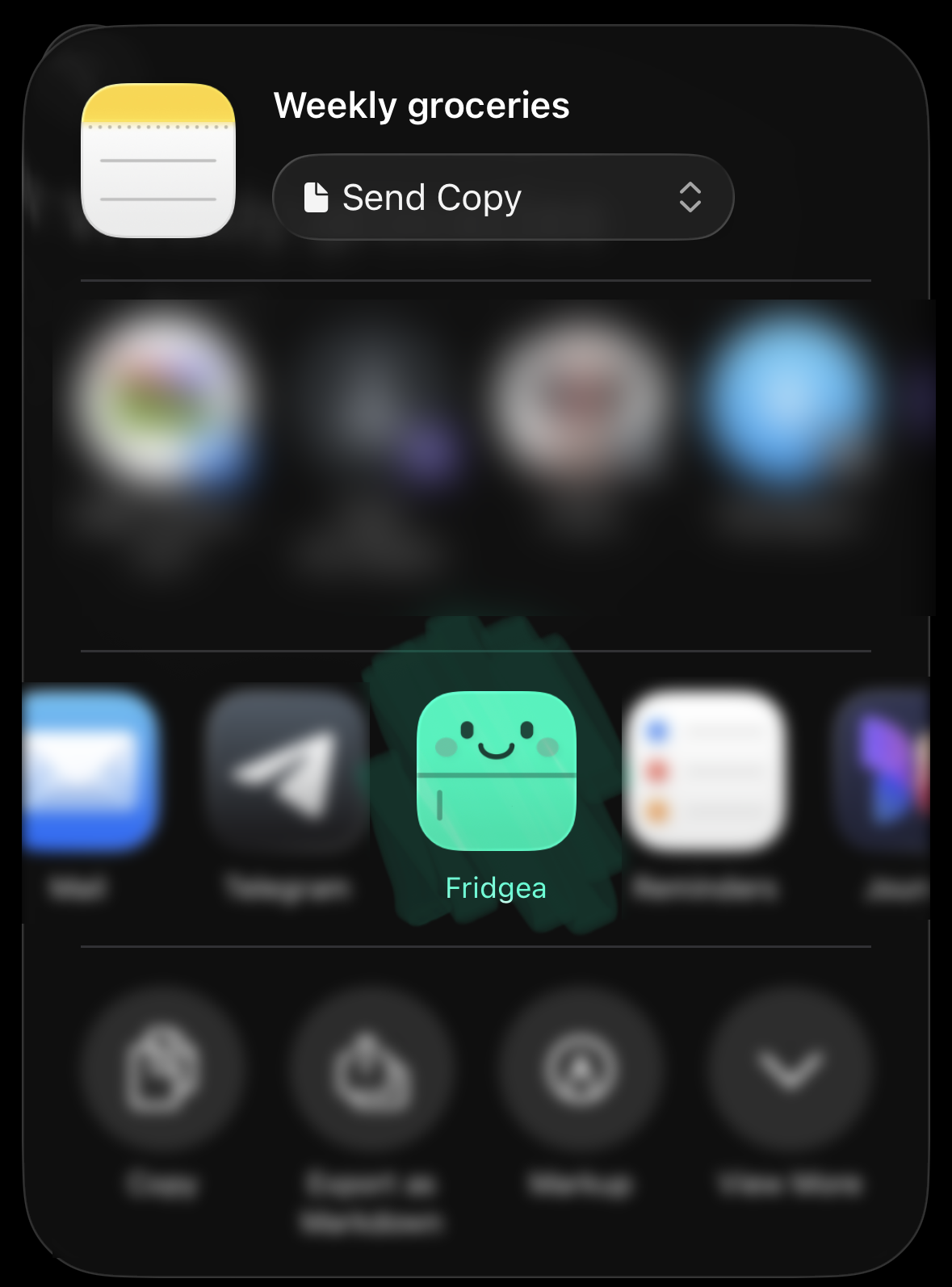
Choose Fridgea
Pick Fridgea in the share sheet.
Review and import
Fridgea picks up headings, quantities and checkboxes. Choose a list, adjust anything and import.
Why it helps
- Headings in your note become categories.
- Understands bullets, checkboxes and quantities like "milk x2" or "2 kg flour".
- Import into a new list or one you already have.
What Fridgea understands
Bullets, numbered lists and Notes checklists all work. A line ending with a colon — or a short line followed by items — becomes a category, and quantities like "2 kg flour", "milk x2" or "eggs ×6" stay with their item. Nothing in your note changes; Fridgea only reads a copy.
Step-by-step guide
Want the full walkthrough with screenshots? Read our guide to turning a Notes list into a shopping list.
Questions, answered
Do I have to stop using Notes?
No. Share a note whenever you're ready to shop; the note stays as it is.
What formats work?
Bulleted lists, checklists and plain lines. A line ending with a colon becomes a category.
Can I import into an existing list?
Yes. Pick any list, or create a new one during import.
Is Notes import free?
It's part of Pro.
Try it on your iPhone
Share a shopping list from Notes and get a tidy list sorted by category.
Free on iPhone & iPad · No account needed